2FA
How to enable 2 Factor Authentication (2FA) with TOTP in Zipline
TOTP (time-based one-time password) adds a six-digit code on top of your password at login. The code comes from an authenticator app on your phone like 2FAS, Authy, Aegis, Google Authenticator, or whatever password manager you already use.
Enabling TOTP on your instance
- Head to Server Settings
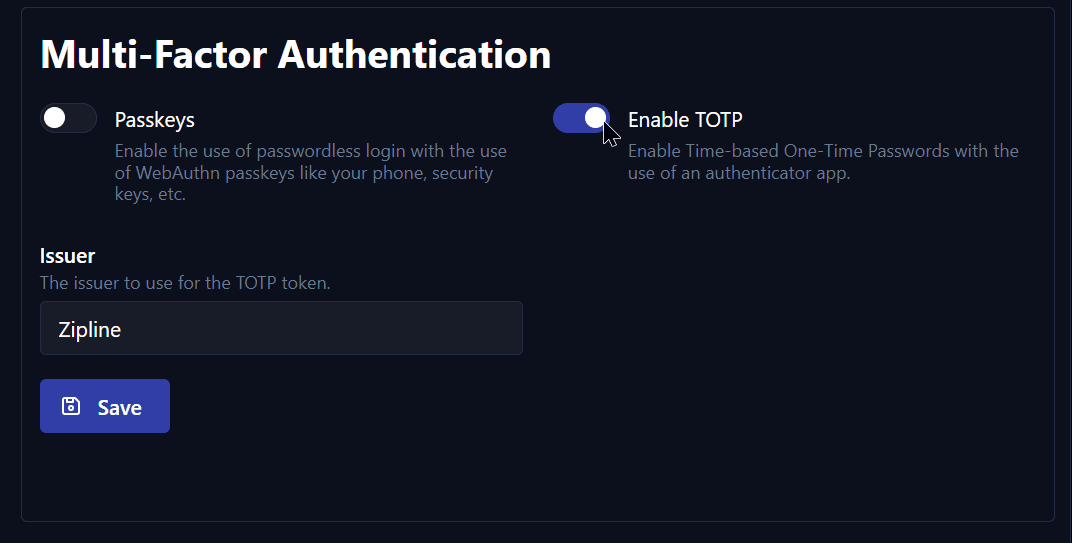
- Scroll down to Multi-Factor Authentication
- Toggle Enable TOTP and click Save
Setting an issuer
The Issuer is the name shown in the authenticator app next to the code. Set it to something recognizable like Zipline or the name of your instance (e.g. zipline.example.com). Apps like Authy and 2FAS use this to pick an icon automatically, so users don't have to guess which account they're looking at.
Environment variables
MFA_TOTP_ENABLED=true
MFA_TOTP_ISSUER=Zipline
Setting up TOTP on your account
Once you have enabled TOTP on your instance, users can now enable 2FA on their own accounts:
- Click your avatar in the top right and head to Manage Account
- Scroll down to Multi-Factor Authentication
- Click Enable TOTP
- Scan the QR code with your authenticator app, or copy the secret and paste it in manually
- Enter the six-digit code your app shows you to confirm
- Click Save
Once set up, you'll be asked for a code every time you log in.
Disabling TOTP on your account
- Head to Manage Account → Multi-Factor Authentication
- Click Disable TOTP
- Confirm with your current TOTP code
Resetting TOTP for a user
If a user loses their authenticator and can't log in, an admin can clear their TOTP secret with ziplinectl set-user:
ziplinectl set-user -i <user-id> totpSecret nullSee also
- Passkeys — passwordless login as an alternative or addition to TOTP
- MFA settings reference